
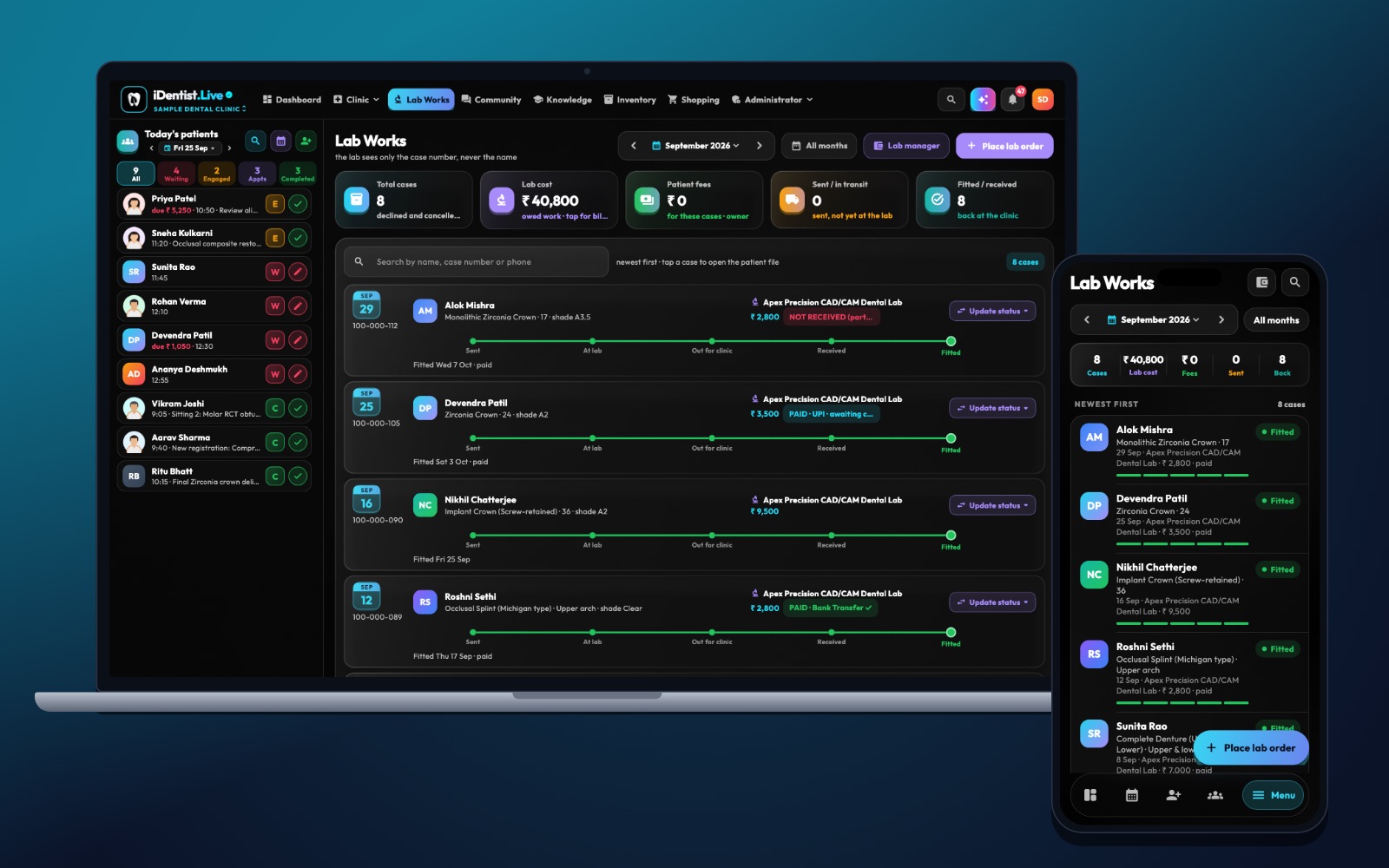
A lab case should never disappear into a chat thread after the clinic sends it. iDentist.Live gives the clinic and the lab connected views of the same order, with every stage visible from intake to dispatch and fitting.
Write a complete prescription, check the case before accepting a deadline, use a few clear stages with an owner each, record every change, and close the case only after the clinic reports the fit.
The work order is a shared agreement
A lab work order is the agreement between the clinic and the technician. It answers: what is being made, for whom, on which tooth or arch, from which records, in which material, and by when.
A status board only helps if questions, changes and approvals are recorded when they happen — not typed in after the case is already late.
Five steps for a good work order
- Write a complete prescription. Include the case number, the prescribing dentist, restoration type, FDI tooth and shade, material, design notes, opposing teeth and the delivery date. Protect patient details in outside messages.
- Check what arrived. Confirm the scan or impression, bite, photos and attachments before accepting a deadline. If something is unusable, send a specific request instead of starting anyway.
- Use a few clear stages. For example: received, design, making, finishing, quality check, sent out, fitted. Give each stage an owner and a time.
- Record changes and approvals. A change to shade, margin, material or date needs a clear revision that both sides accept. Keep the earlier instructions, so a later remake review can see what happened.
- Close after the fit. Record dispatch and receipt, then the fit result, any adjustment and the reason for a remake. “Sent” does not always mean “successful”.
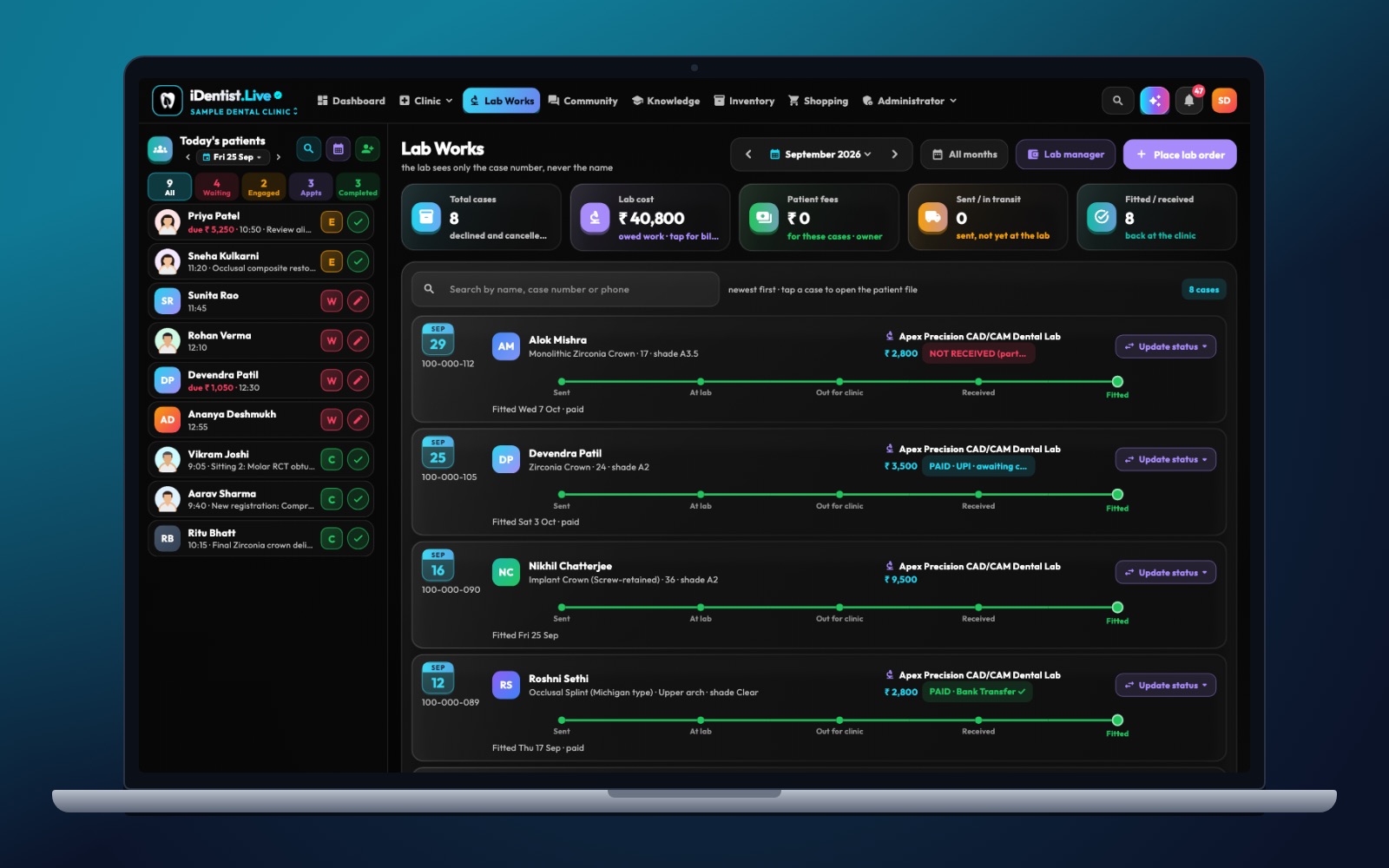
The real iDentist.Live screen, with demo data — no real patients.
How iDentist.Live helps
The lab dashboard shows open cases, restoration type, tooth, shade, urgency, payment status and production stages in one place. The clinic has its own Lab Works page, so both sides discuss one shared order without sharing the patient’s chart. The clinic owns the clinical care; the lab owns the making; both see what they need for the next handover.
- Clear stages: received, CAD and milling, sintering, staining, fit check, dispatch.
- Case details: tooth, shade, material and restoration with every order.
- One shared order, while private clinical records stay with the clinic.
- Free and unlimited orders, even as you add clinic partners.
A real example
A clinic orders a zirconia crown for tooth 26. The lab receives the scan but the margin is unclear. The technician marks the case “needs clarification” and sends an image with the exact question. The dentist sends a new scan and agrees to the new due date. When the crown is fitted, the clinic records whether it needed adjusting. This timeline explains the delay and helps improve future scans.
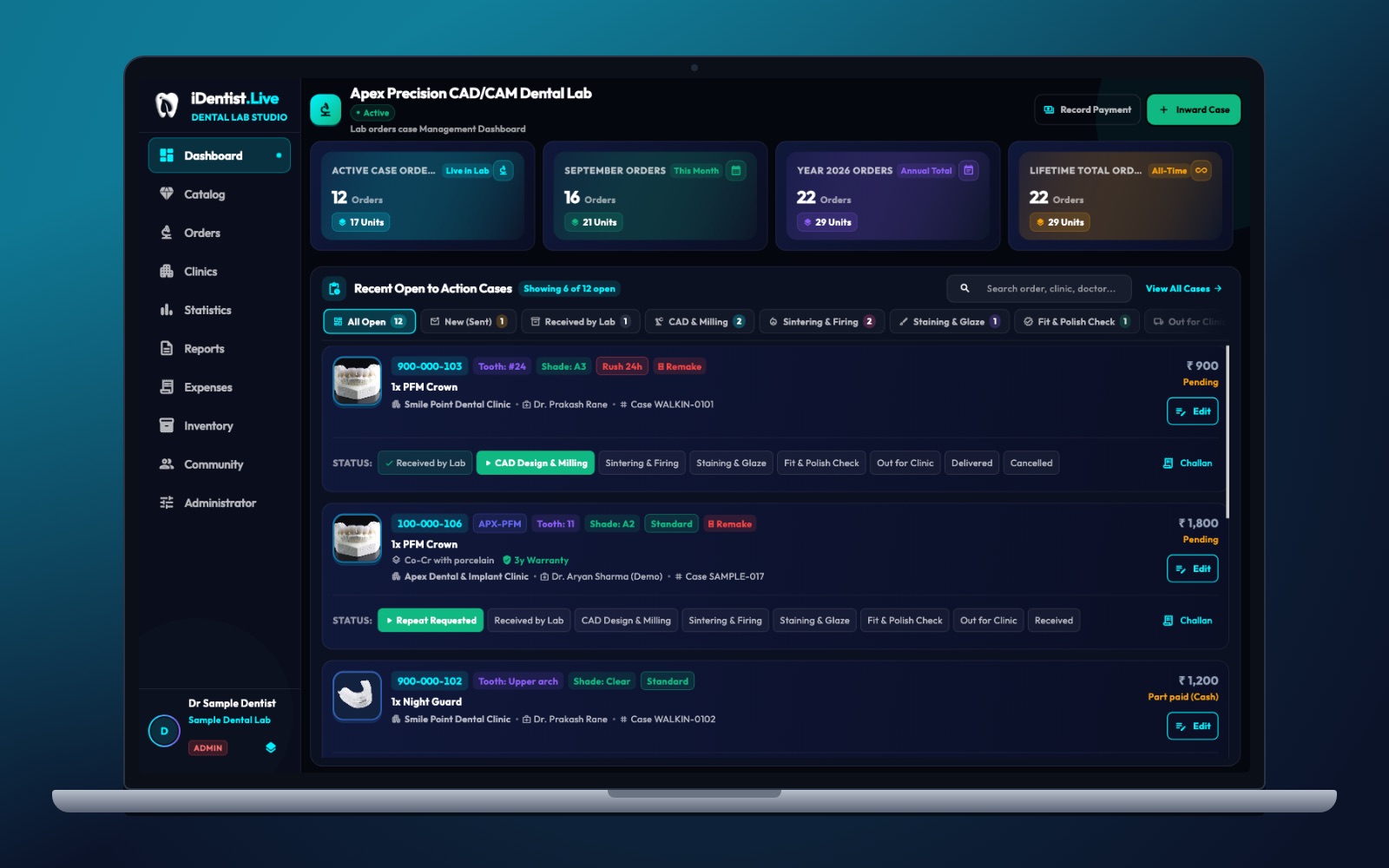
The real iDentist.Live screen, with demo data — no real patients.
Try it in iDentist.Live
In the free demo, open Lab Works on the clinic side and the orders board on the lab side. Follow one made-up crown from new order to its current stage, and list what the lab still needs from the dentist. In real work, use the order’s notes and history so spoken changes are never lost.
What to measure
Track incomplete cases, time waiting for the clinic to answer, time in each stage, on-time dispatch, fit adjustments and remake reasons. Keep the lab’s delays separate from the clinic’s.
Avoid these mistakes
Do not use one word like “processing” for every stage. Do not set a deadline before checking the case. And do not let changes made over WhatsApp stay out of the work order. Clinical approval always stays with the prescribing dentist.
Questions people ask
What does a minimum useful work order contain?
A case number, tooth or arch, restoration and material, the scan or impression, design notes, a due date and named contacts.
When should the turnaround clock start?
Agree a clear rule. Many labs start the clock once a complete case has been accepted, not at the first incomplete submission.
Can the clinic see where its case is?
Yes. In iDentist.Live the clinic follows the same order and its stage from Lab Works.