
The iDentist.Live patient file, in depth
Everything about a patient is on one screen. This guide walks through every part, with real changes as we go.
▶ Plays from YouTube when you tap it — Google's privacy terms apply.
Open a patient
On the dashboard, today's patients are on the left: waiting, in the chair, or done. Tap a patient to open the file.
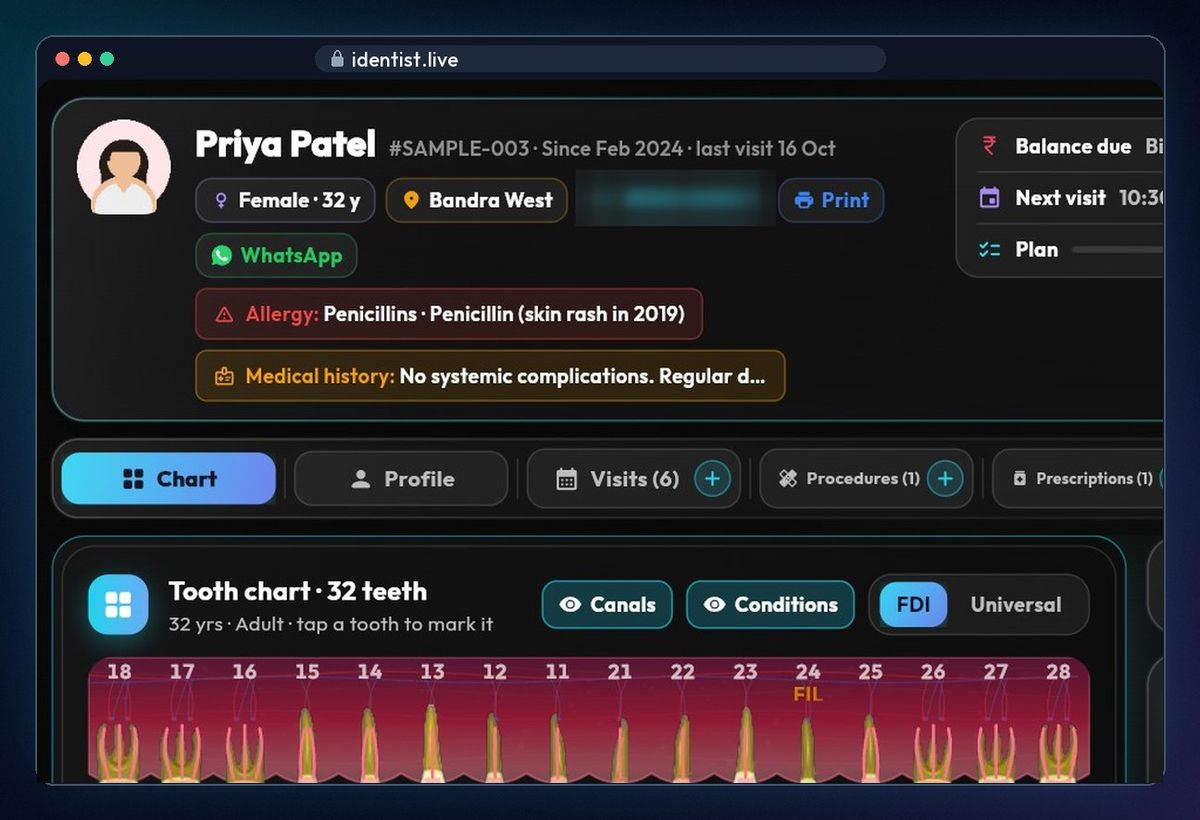
The header
Name, file number, since when, and the last visit. Gender and age, area, phone (tap to call), Print for the whole file, and WhatsApp. Allergies and medical history show in colour on every screen. On the right: bill, paid and balance due, the next appointment, and how far the plan has come.
Tooth chart
The chart uses FDI numbers (or Universal). Fillings, missing teeth and other findings are drawn on the teeth.
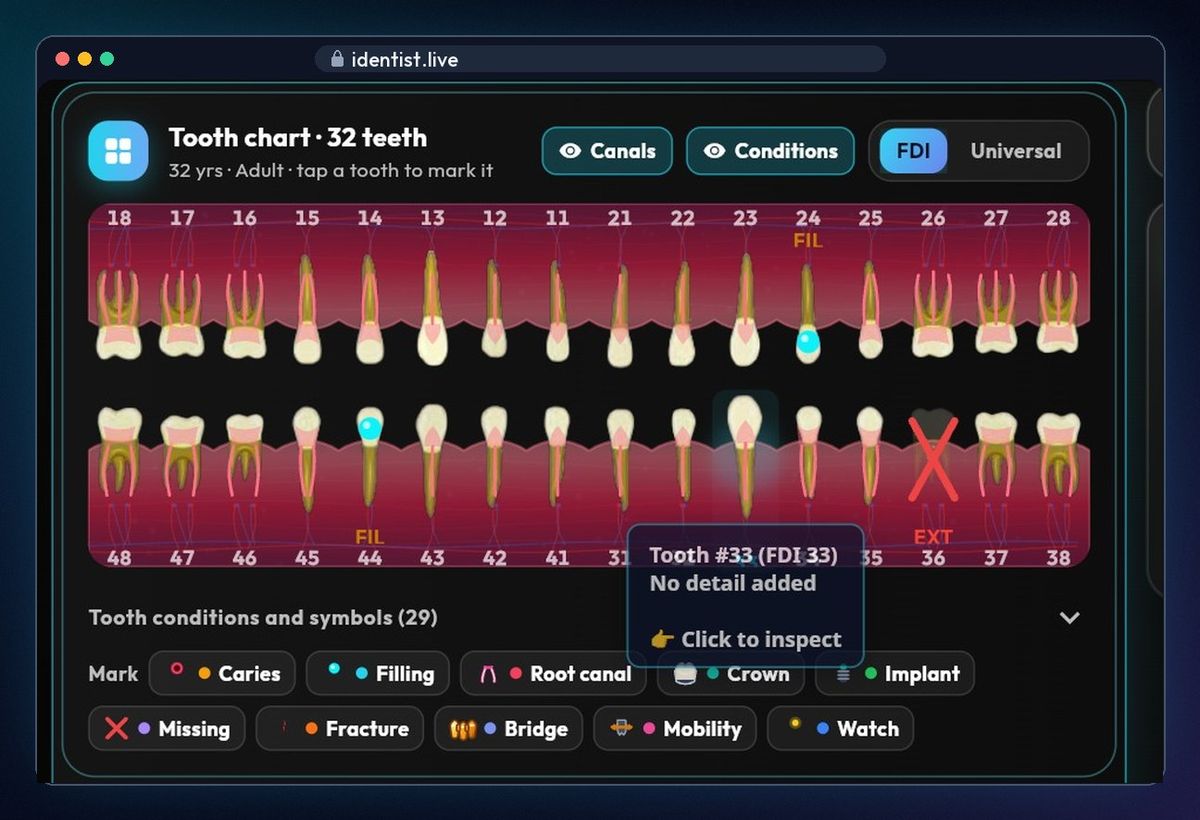
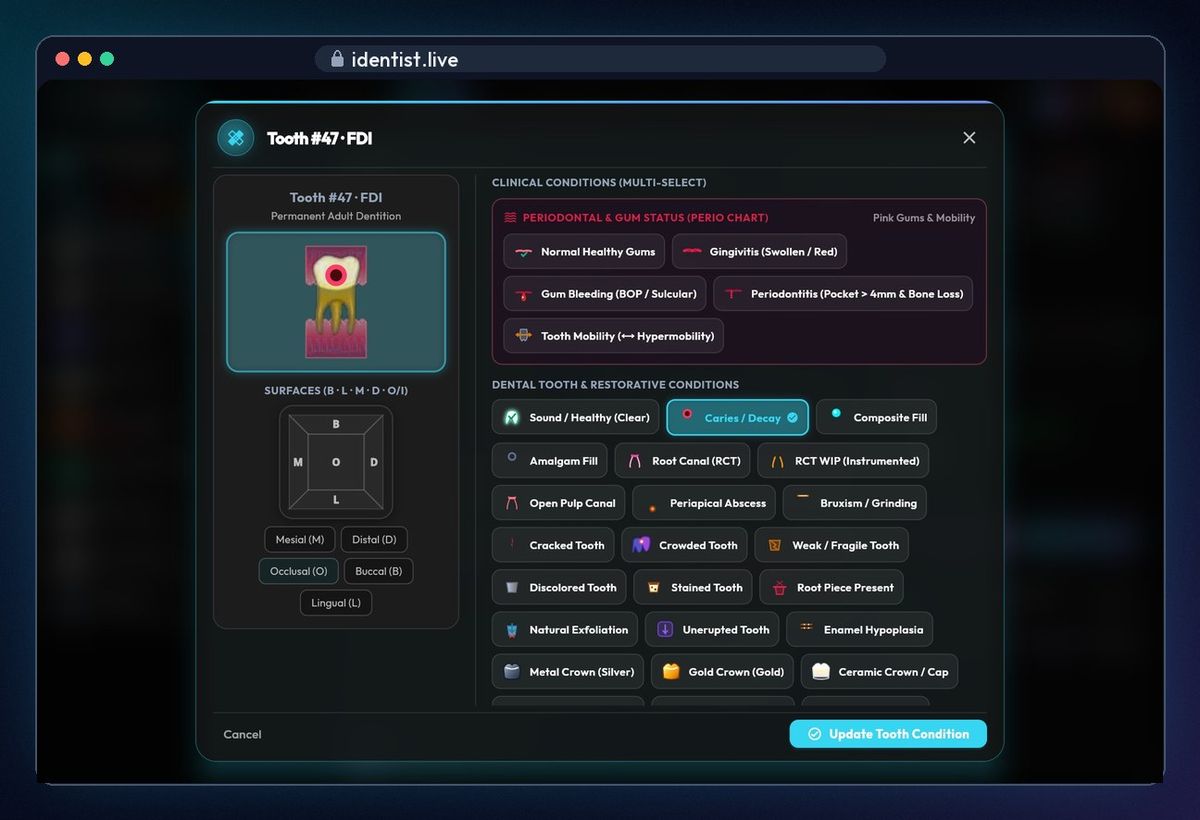
Mark a finding
Tap a tooth. Its card shows the five surfaces, gum status and every common condition. Choose Caries on the occlusal surface and tap Update — the chart changes at once.
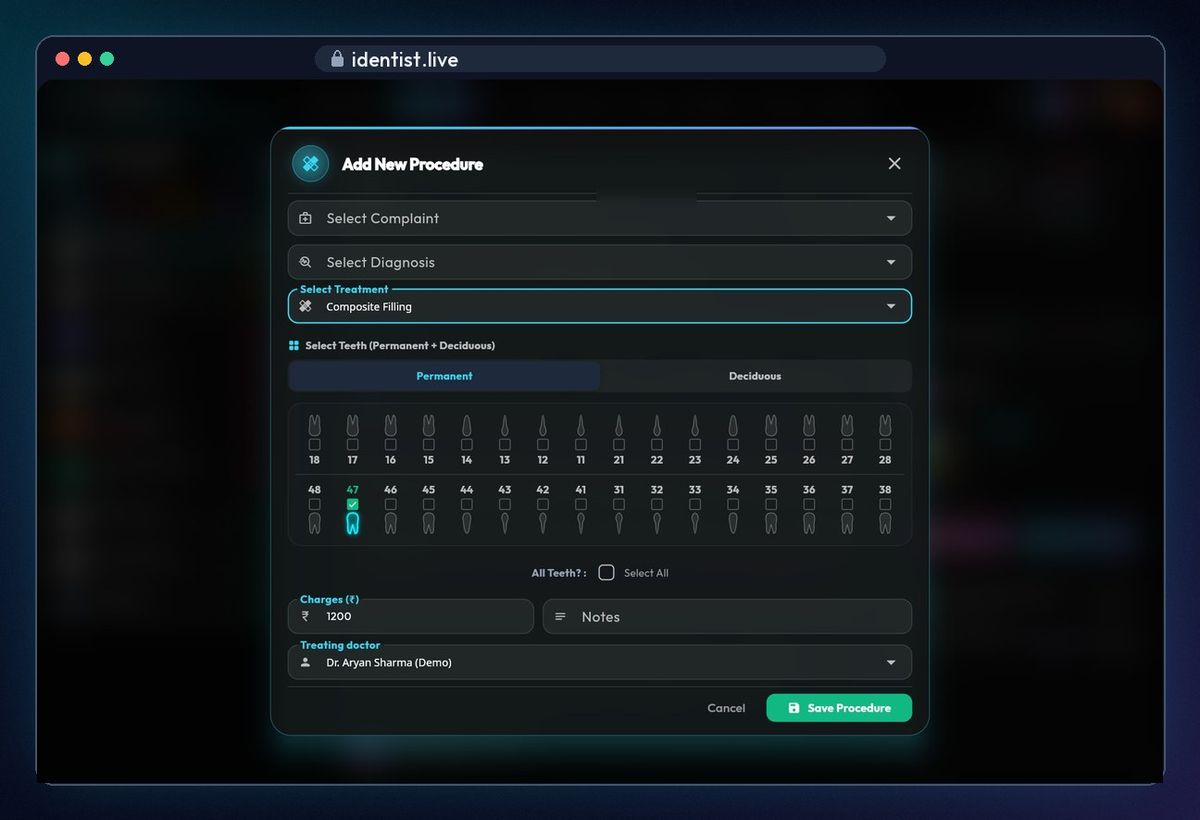
Add a procedure
On the tooth card tap Procedure. The tooth is already picked; choose the treatment — the usual charge fills in by itself — and save.
Treatment plan
Procedures shows done, in progress, planned and discontinued, with their value. Tap any step to edit it or change its status; Lab work lists the steps that need a lab.
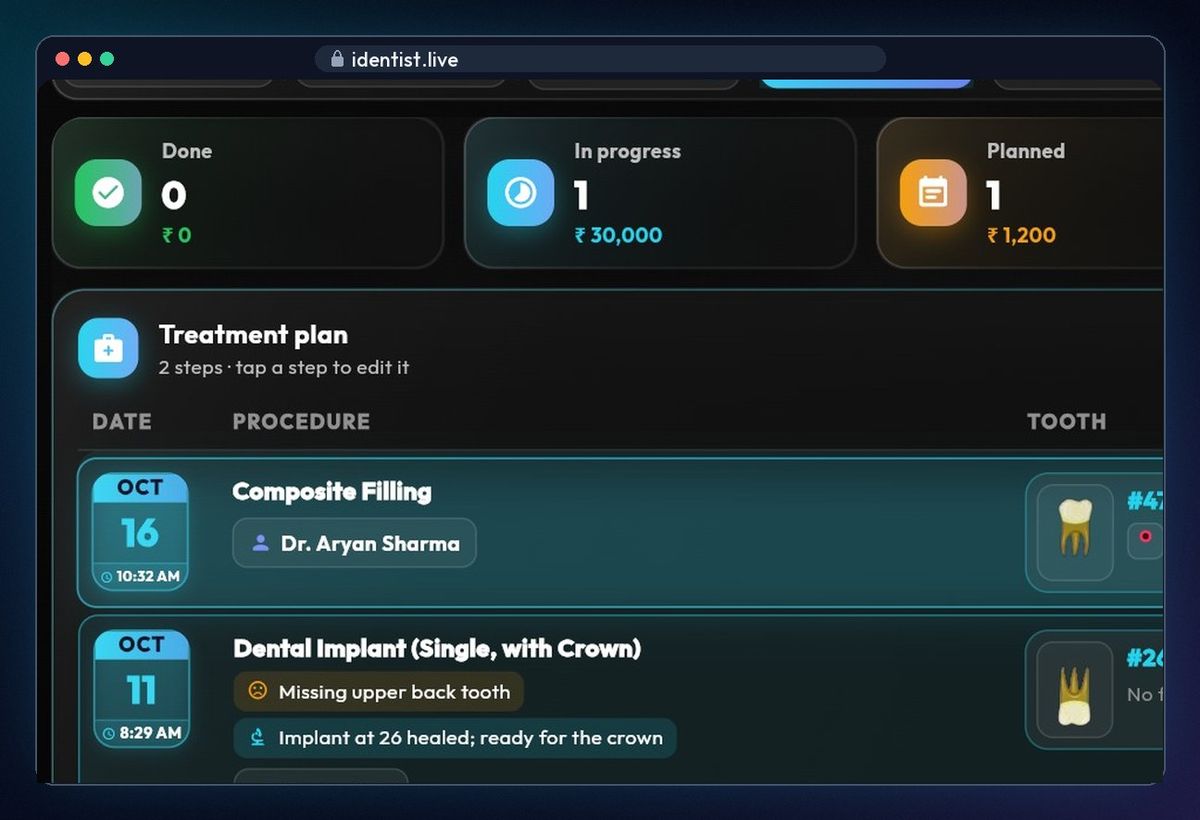
Profile
Personal details, contact for reminders, medical history fields, and consent under the DPDP Act. Tap Edit to change anything.
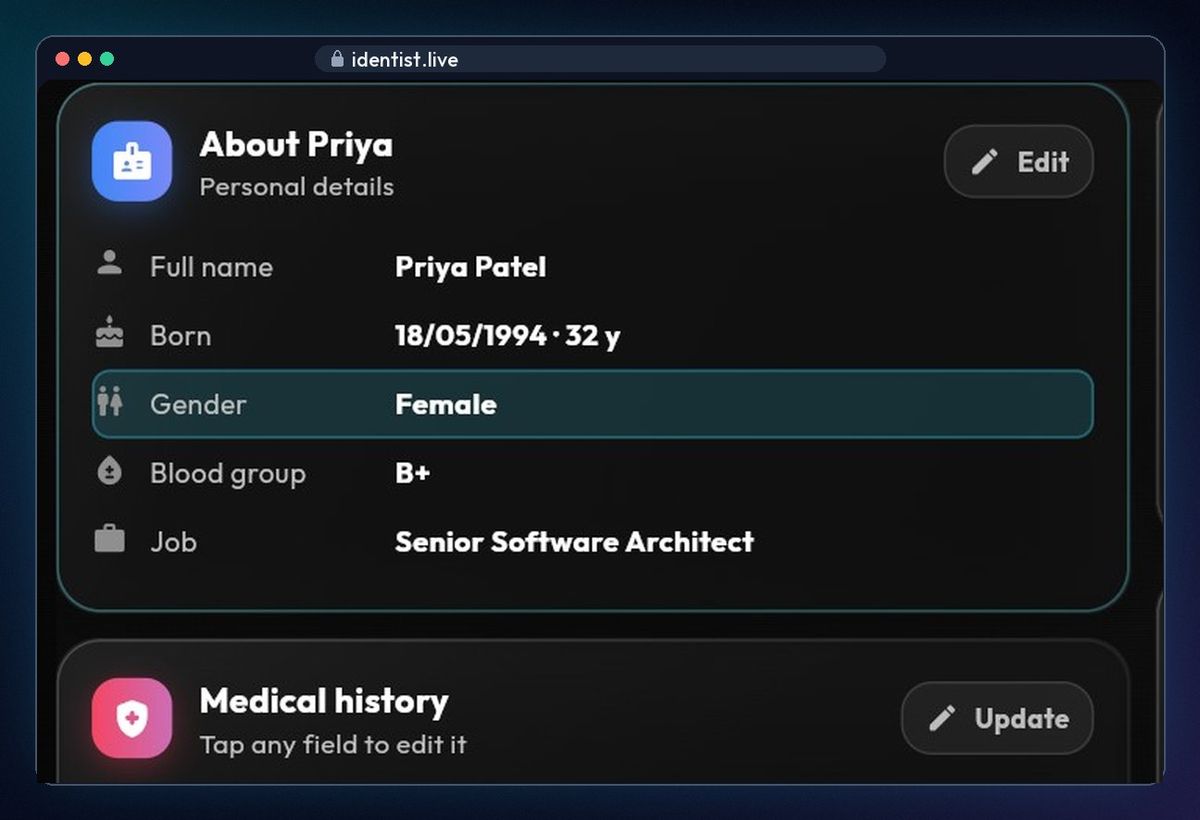
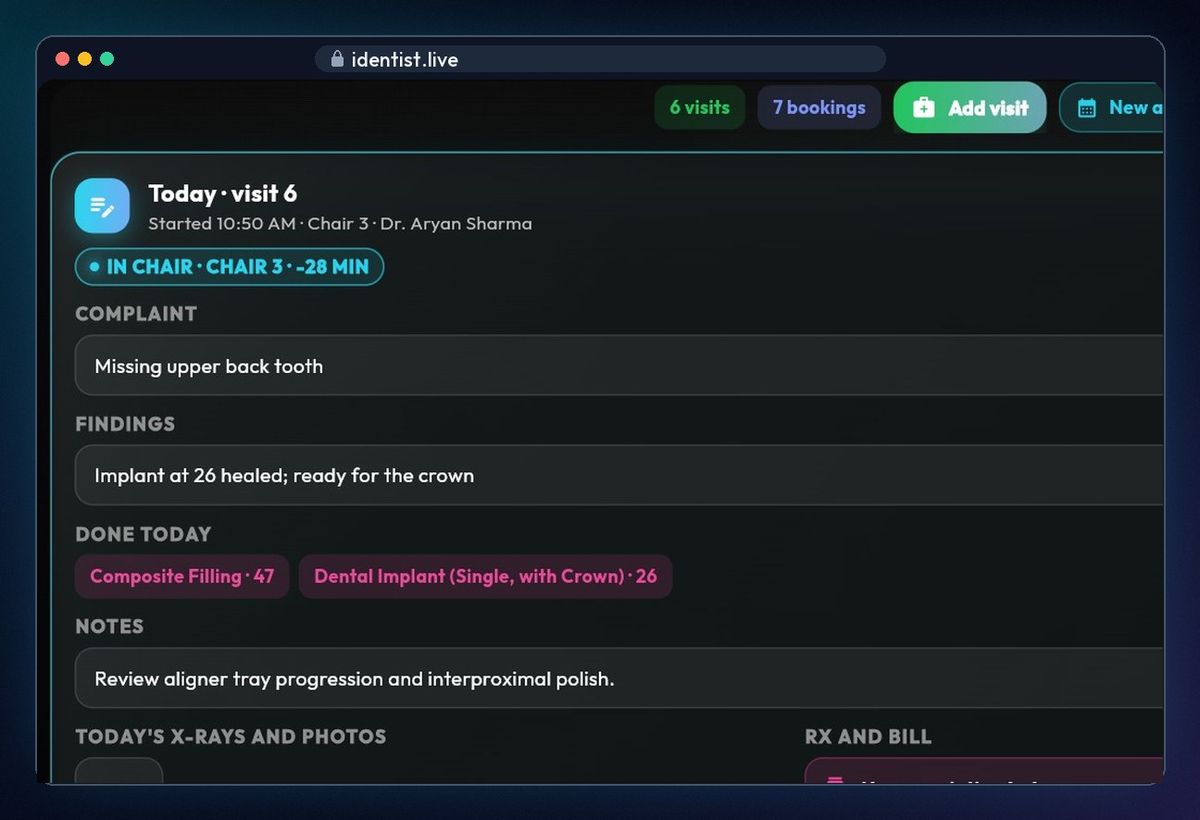
Visits
Today's visit at the top, and every past one: complaint, findings, work done, notes, X-rays, and that day's prescription and bill.
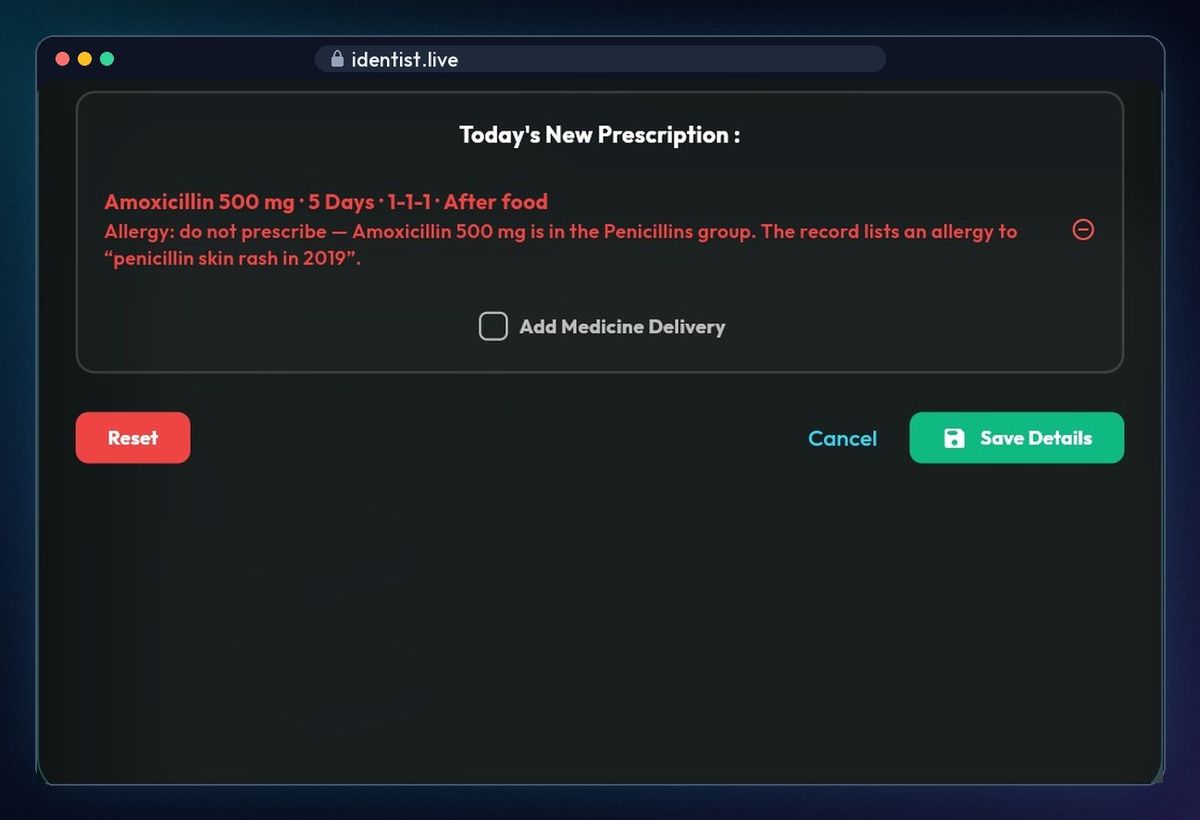
Prescriptions — allergy check
Tap New prescription and pick a medicine — days, dosage and timing fill in. If the patient is allergic (here, penicillin and Amoxicillin), a red warning appears before you save.
X-rays and photos
Imaging keeps every X-ray, scan and photo, sorted (DICOM/CBCT, OPG, RVG, IOPA, photos, before/after). Tap Add photo, choose the file or the camera, set the type, tooth and a note, and upload.
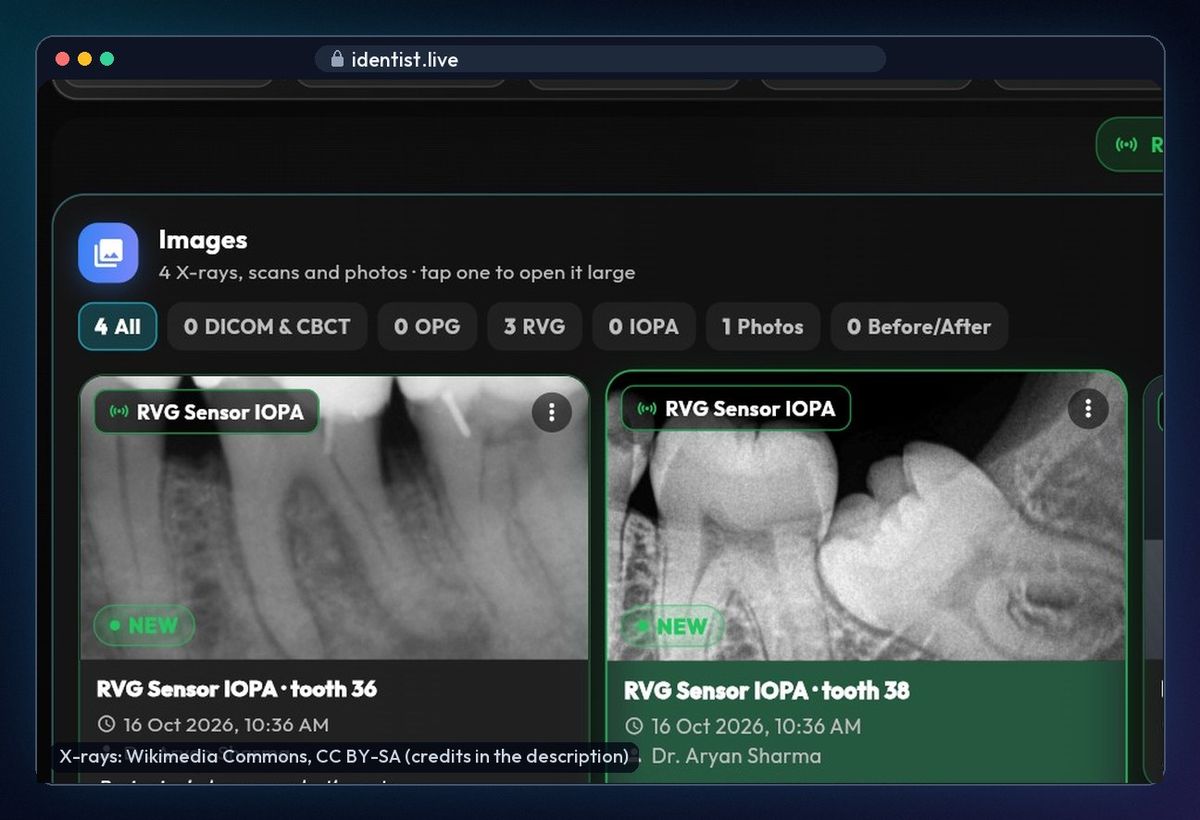
💡 X-rays in the video: Wikimedia Commons (Nizil Shah, CC BY-SA 4.0; Coronation Dental Specialty Group, CC BY-SA 3.0).
Open an X-ray large
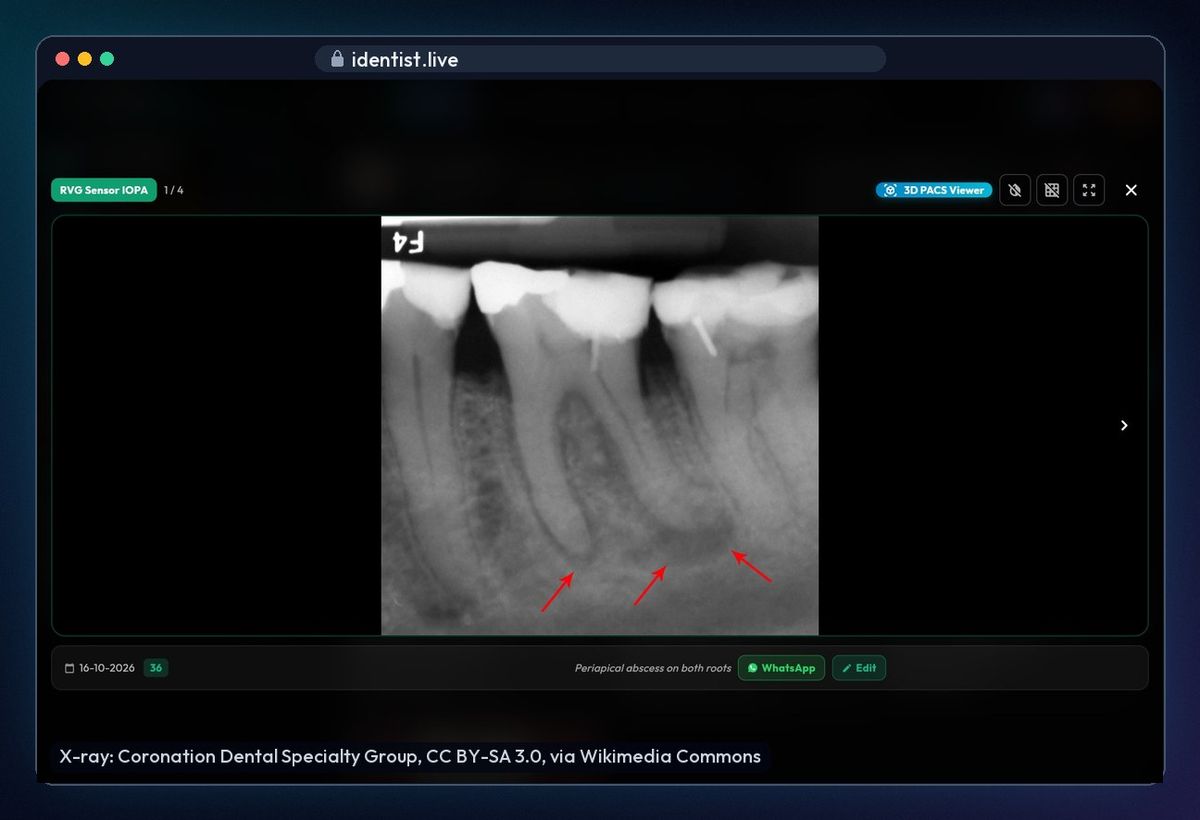
Tap one to open it large; open DICOM scans in the 3D PACS viewer, edit the details, or share on WhatsApp.
Payments
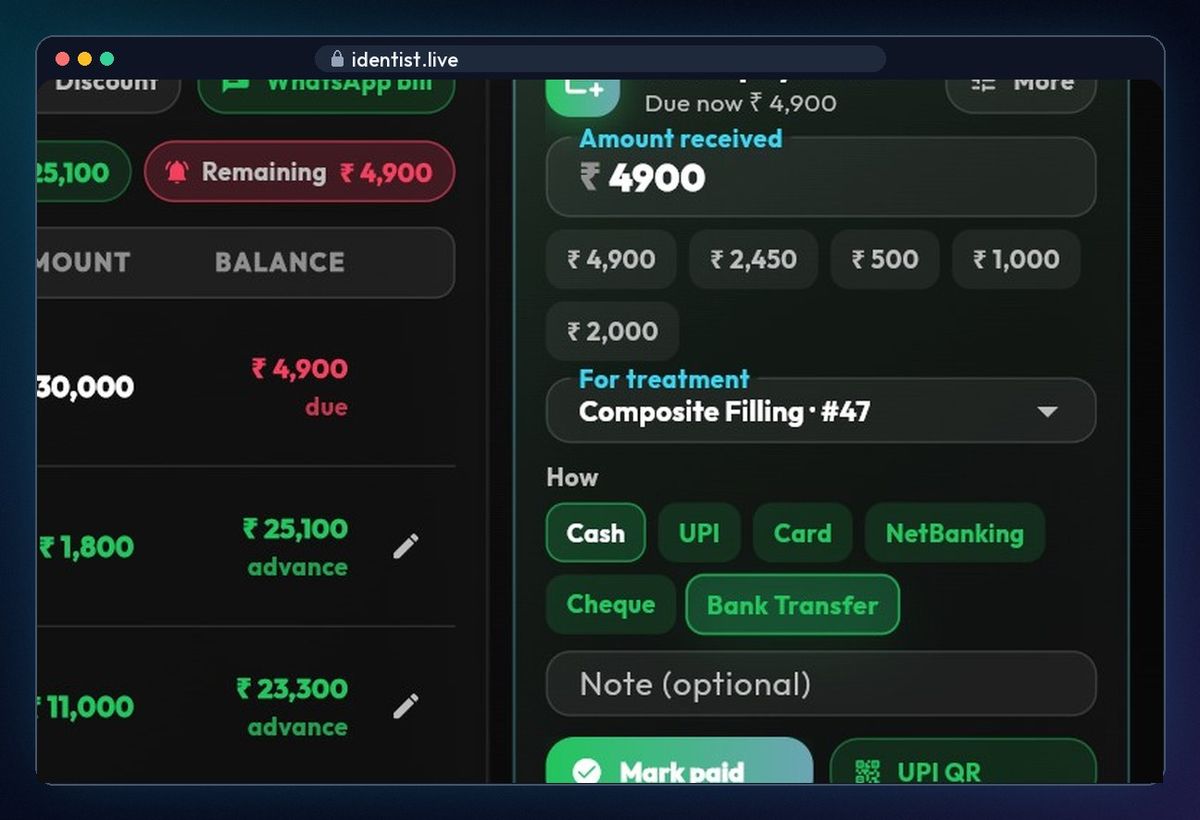
The account shows billed, discounts, paid and due. In Quick payment choose the treatment and how they paid — cash, UPI, card, net banking, cheque or bank transfer — and tap Mark paid. The balance updates everywhere.
If something goes wrong
- Allergy not showing? Add it in Profile › Medical history — it then shows on every screen and in prescriptions.
- Charge not filling in? Set the treatment's usual price under Admin › Settings › Procedures › Treatments.
- X-ray too big? Large pictures are made smaller automatically; DICOM files open in the 3D PACS viewer.
Questions people ask
Does it work without internet?
Yes. Every change is saved on your device first and syncs by itself when you are back online.
Can patients see their file?
Patients see their own visits, bills, prescriptions and the X-rays you share in their patient portal.
Is it free?
Yes. The main app is free, and always will be.
More how-to guides
 1:17Use it on the webAny computer, nothing to download
 0:43Install on AndroidPhone or tablet, from Google Play
 3:47Bills, GST and UPITake payments and check every rupee
 2:41Lab worksSend a case, every stage live
 1:56Appointments and chairsBook without clashes, check in
 1:44Stock and restockingLow stock, counts, reorder